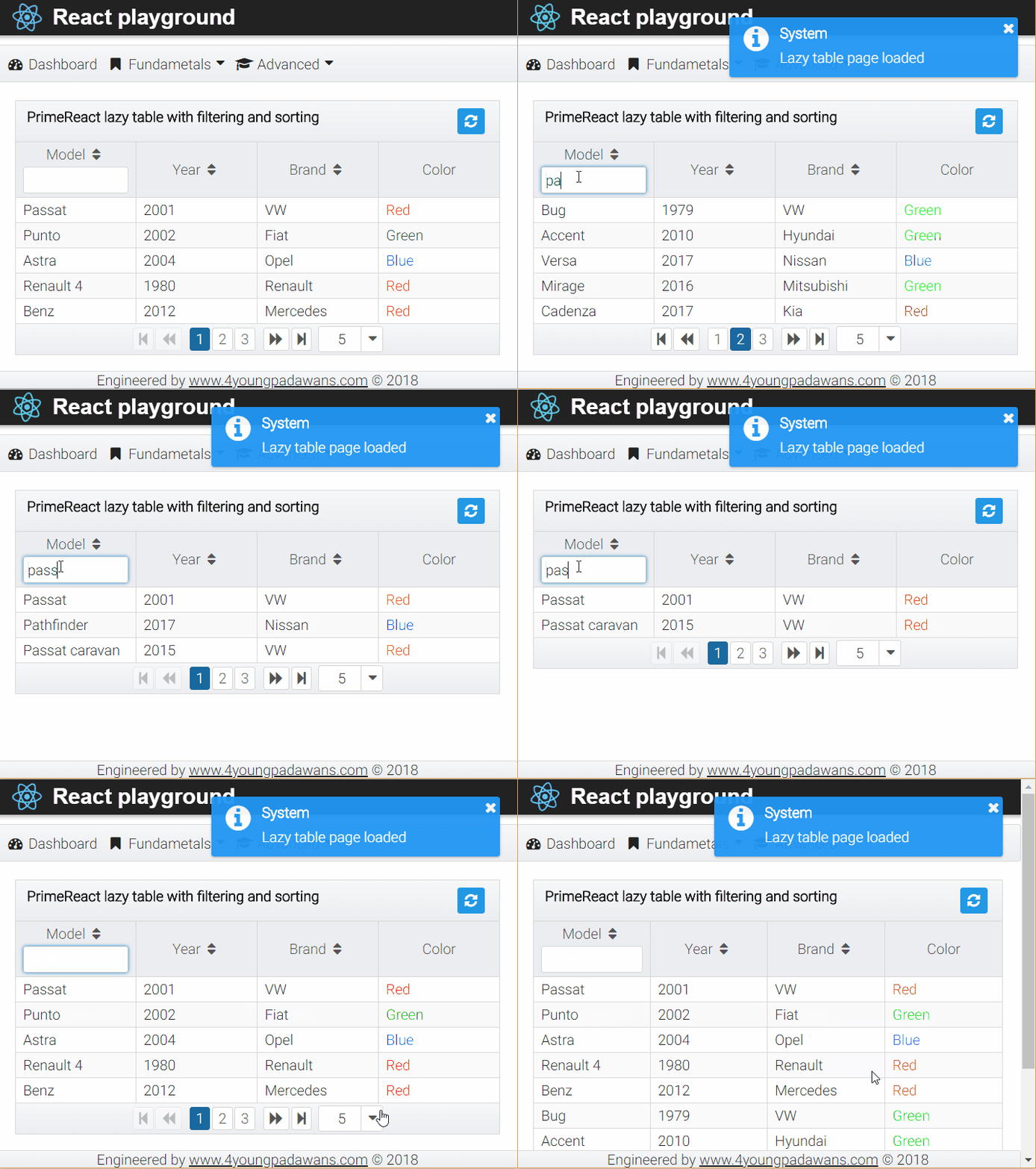

In rapidly evolving React ecosystem it is more and more hard to choose React UI component library that is the best fit for your or your clients' requirements: not because there are too few libraries but because there are too many and all of them look so promising.
When I was starting to learn about React ways, I wanted to choose UI library that has strong data table support because I was mostly developing business oriented web apps in closed environments. Futher more, my Java JSF background and extensive usage of PrimeFaces JSF components both led me to PrimeReact, one of the youngest React component libraries on the market.
Since PrimeFaces has very good data table implementation, I decided to try PrimeReact implementation and to make it work with my Spring web service.
Basics
Lets suppose that we have a database table that contains thousands of records and intend to show all those records inside UI data table view.
The easiest way would be to load them all from database and flush them into UI via web service but that approach would have great negative impact on system performance with final result that loading of our web page containing table with thousands of records would be very slow.
In order to solve this problem and give a speed boost to our web app, it is recommended to utilize pagination with lazy loading technique provided by PrimeReact data table
- requesting smaller subsets (pages) of our big data from web service,
- loading any page on request
Front-end lazy pagination
To pull and retrieve only limited set of records from web service (page), PrimeReact data table provides following search criteria conditions
- current page number,
- page size (number of records per page),
- (optional) filter criteria for table columns,
- (optional) sorting columns in ascending or descending order
After user interacts with data table and changes any of value above, data table is able to pass search criteria to web service to get required data set.
Back-end lazy pagination
Our web service should be able to
- accept and parse search criteria defined in data table,
- get subset of records from database based on search criteria,
- send subset back to data table
Front-end
Before going to next steps, lets suppose that
- we've already created React project and added PrimeReact components to the project,
- data table row is represented by following model (car and color), e.g
{
    id: 1,
    model: "Passat",
    year: 2001,
    brand: "VW",
    color: {id: 1, name: "Red", code: "#FF0000"}
}
Data table setup
Lets first define React component containing data table and understand how does it work.
import React, { Component } from 'react';
import { DataTable } from 'primereact/components/datatable/DataTable';
import { Column } from 'primereact/components/column/Column';

export class CarLazyTable extends Component {
    constructor() {
        super();
        //setting initial state values
        this.state = { items: [], loading: false};
    }

    onLazyLoad = (event) => {
        console.log("On Lazy load event", event);
        //implementation goes here
    }

    onModelFilterChange = (event) => {
        console.log(event);
        //implementation goes here
    }

    colorColumnTemplate(rowData, column) {
        //car color column template goes here
    }

    render() {
        let modelFilter = <InputText style={{ width: '100%' }} className="ui-column-filter"
            onChange={this.onModelFilterChange} />

        let tableHeader = <div/>

        let datatable = <DataTable ref={(el) => this.dt = el} value={this.state.items}
            lazy={true} onLazyLoad={this.onLazyLoad}
            paginator={true} rows={5} rowsPerPageOptions={[5, 10, 20]} totalRecords={this.state.totalRecords}
            header={tableHeader}>
            <Column field="model" header="Model" sortable={true}
                filter={true} filterElement={modelFilter} filterMatchMode="contains" />
            <Column field="year" header="Year" sortable={true} />
            <Column field="brand" header="Brand" sortable={true} />
            <Column header="Color" body={this.colorColumnTemplate} />
        </DataTable>;

        return (
            <div>
                {datatable}
            </div>
        );
    }
}
The most important properties of <DataTable../> component are
value- array of records for one page,totalRecords- total number of records from big data set,lazy- puts data table in lazy modeonLazyLoad- function called each time when data table requests for new page:- when component mounts,
- when some of search criteria is changed
header- defines layout of data table header
Each data table column is defined with <Column../> component with following properties
field- field name from our record model,header- column header titlesortable- enables column sorting,filter- enables column filtering,filterElement- defines layout and functionality of column filter input
Lazy load function
Each time data table requests for page, it calls onLazyLoad function with event argument containing following fields
filters- key-value map of column filtersfirst- page numbermultiSortMeta- key-value map if sorting is enabled for multiple columns simultaneously,rows- number of rows per one page,sortField- sort field namesortOrder- sort order (1-ascending, -1 descending) of sort field
    onLazyLoad = (event) => {
        console.log("On Lazy load event", event);
        let self = this;
        this.setState({ loading: true });
        this.carservice.getCarsLazy(event)
            .then(function (resItems) {
                console.log("Headers", resItems.headers);
                //get total record count from response header
                var totalRecords = resItems.headers['x-result-count'];
                //load items into local array
                self.setState({ totalRecords: Number(totalRecords), loading: false, items: resItems.data });
            }).catch(function (error) {
                console.log(error);
            });
    }
Passing search criteria to web service
When onLazyLoad function is triggered, we need to call web service using GET request (to be compliant with REST recommendations) and pass event argument to it.
But how can we send GET request without using request body in case when event argument is complex and contains fields and key-value maps?
There are several ways to do it but the easiest one is
- to convert
eventobject to JSON string, - to encode JSON string to Base64 and pass it as GET request's query string
import service from './service.jsx';
import axios from 'axios';

export class CarService {
    getCarsLazy(event) {
        console.log("Table lazy event",event);
        var filterJsonString=JSON.stringify(event);
        console.log("Filter",filterJsonString);
        //convert JSON string to Base64
        var filterJsonStringBase64=btoa(unescape(encodeURIComponent(filterJsonString)));
        //pass it to GET request as query string
        return service.getRestClient().get('cars?filter=' + filterJsonStringBase64);
    }
}
Column filter setup
For car model column we defined filter with input text layout.
Each time user types character into input text, function onModelFilterChange is called triggering onLazyLoad function.
Since the best practice would be to allow user to type few characters before web service is called, we can introduce delayed function call using timer.
    onModelFilterChange = (event) => {
        console.log(event);
        if (this.state.filterTimerId) {
            clearTimeout(this.state.filterTimerId);
        }
        let context = this;
        let filterValue = event.target.value;
        var filterTimerId = setTimeout(() => {
            //following line sets defined filter and triggers onLazyLoad function
            context.dt.filter(filterValue, 'model', 'contains');
            context.setState({ filterTimerId: null });
        }, 1000);
        this.setState({ filterTimerId: filterTimerId });
    }
When user types first character, we schedule context.dt.filter function execution with 1 second delay. If, in 1 second period, user types another character, we cancel timer and reschedule it.
Column layout template
Table columns can be styled to highlight specific table cells.
    colorColumnTemplate(rowData, column) {
        if (rowData['color']) {
            return <span style={{ color: rowData['color'].code }}>{rowData['color'].name}</span>;
        } else {
            return <span />;
        }
    }
As you can see, if rowData contains field color then we will show styled color name like this: Red, Green or Blue.
##Table header template
Table header can be used to place additional functionalities like action buttons. For example, refresh, CRUD or loading/progress indicator
let tableHeader = <div className="ui-helper-clearfix" style={{ width: '100%' }}>
            <label style={{ float: 'left', fontWeight: 'bold' }}>PrimeReact lazy table with filtering and sorting</label>
            {this.refreshButton()}
        </div>
where refreshButton() function can be implemented like this
    refreshButton() {
        if (this.state.loading) {
            return <span style={{ float: 'right' }} className="fa fa-spinner fa-pulse fa-2x fa-fw" />
        } else {
            return <Button style={{ float: 'right' }} icon="fa-refresh" disabled={this.state.loading ? "disabled" : ""} />
        }
    }
In this example, while onLazyLoad function is in executing FontAwesome spinner is visible.
Back-end
UI is ready now. We can start creating back-end web service endpoint using Java Spring framework.
Lets first define 2 helper classes so that we can utilize Gson library and easily convert JSON from GET request query string to Java object.
LazyPageParamRest.java
//this class is used to easily map search criteria from PrimeReact data table
public class LazyPageParamsRest {
    //page number
    Integer first;
    //rows per page
    Integer rows;
    //name of field to sort
    String sortField;
    Integer sortOrder;
    //field filters
    Map<String, LazyPageFilter> filters;

    //getters and setters...
}
LazyPageFilter.java
public class LazyPageFilter {
    String value;
    String matchMode;

    //getters and setters
}
Finally, /cars endpoint can be implemented like this (check out code comments for additional explanations)
@Controller
@RequestMapping(path = "/cars")
public class CarRestController {
    @Autowired
    private CarRepository carRepository;
    @Autowired
    private CarService carService;

    @CrossOrigin(origins = "*")
    @RequestMapping(method = RequestMethod.GET)
    public ResponseEntity<?> getAll(@RequestParam(required = false, value = "filter") String filter) {
        //first we get total count of records from database
        long count = carRepository.count();
        //custom java class to store search related criteria
        GenericSearchCriteria gsc = new GenericSearchCriteria();
        if (filter != null) {
            //decode filter request param value from Base64
            byte[] decoded = Base64.getDecoder().decode(filter);
            String decodedStr = new String(decoded);
            System.out.println("Lazy search criteria: " + decodedStr);
            //convert JSON string to LazyPageParamsRest object using Gson library
            LazyPageParamsRest lppr = new Gson().fromJson(decodedStr, LazyPageParamsRest.class);

            if (lppr.getFirst() != null && lppr.getRows() != null) {
                gsc.setFirstRecord(lppr.getFirst());
                gsc.setPageSize(lppr.getRows());
            } else {
                gsc.setFirstRecord(0);
                gsc.setPageSize((int) count);
            }
            if (lppr.getSortField() != null) {
                gsc.setSortField(lppr.getSortField());
                if (lppr.getSortOrder() == 1) {
                    gsc.setSortOrder("ASCENDING");
                } else {
                    gsc.setSortOrder("DESCENDING");
                }
            }
            if (lppr.getFilters()!=null){
                //create filters map for generic search criteria
                Map<String,Object> searchCriteriaFilters=new HashMap<>();
                Map<String, LazyPageFilter> filters = lppr.getFilters();
                if (filters.containsKey("model")){
                    LazyPageFilter modelFilter=filters.get("model");
                    searchCriteriaFilters.put("model",modelFilter.getValue());
                    gsc.setFilters(searchCriteriaFilters);
                }
            }
        } else {
            gsc.setFirstRecord(0);
            gsc.setPageSize((int) count);
        }

        //get reguired page from our car data service based on search criteria
        List<Car> items = carService.getLazyData(gsc);
        HttpHeaders headers = new HttpHeaders();
        //put total record count into custom X-Result-Count header
        headers.add("X-Result-Count", String.valueOf(count));
        //allow browser to read X-Result-Count header
        headers.add("Access-Control-Expose-Headers", "X-Result-Count");

        //return response with required car page
        return ResponseEntity.ok().headers(headers).body(items);
    }
Result